Analytics Dashboard

Know where your AI budget is going

See how people use each supported feature, check past activity and follow trends. What you can see depends on your plan and the activity Charigent has recorded.

7-day free trialCard requiredCancel anytime before it converts
AI-generated Emily Marlowe presenting skincare as a brand ambassador.AI
Emily Marlowe · AI brand ambassadorIllustrative AI output, not a real person or a customer result. Business tasks depend on your plan, connected accounts and approval settings.

What you get

Activity and usage visibility

Review available usage, credit usage, and trend data while keeping event freshness and your own business outcomes in context.

Up-to-date usage details

Dashboards show recorded AI requests and actions. New information appears after the activity has been recorded.

Spending Breakdown

Review recorded credit usage for each supported feature and kind of task.

Time-series Charts

Daily, weekly, and monthly trend views with anomaly highlighting to surface unusual spend sooner.

credit usage for each kind of task

Compare the recorded credit usage of each supported task. To judge its business value, compare that credit usage with your own results.

Export & Reporting

Download usage and billing data as CSV for accounting, audits, or integrating with your own BI tools.

Use cases

Built for teams that care about credit usage

Budget Management

Set spending targets, monitor recorded usage, and configure available alerts. Timing and delivery can vary.

ROI Analysis

Compare AI spend with available output counts, then combine it with your own business outcome data to evaluate ROI.

Capacity Planning

Use historical trends as planning input; they do not guarantee future usage or prevent overages.

See it in action

Current Charigent product views
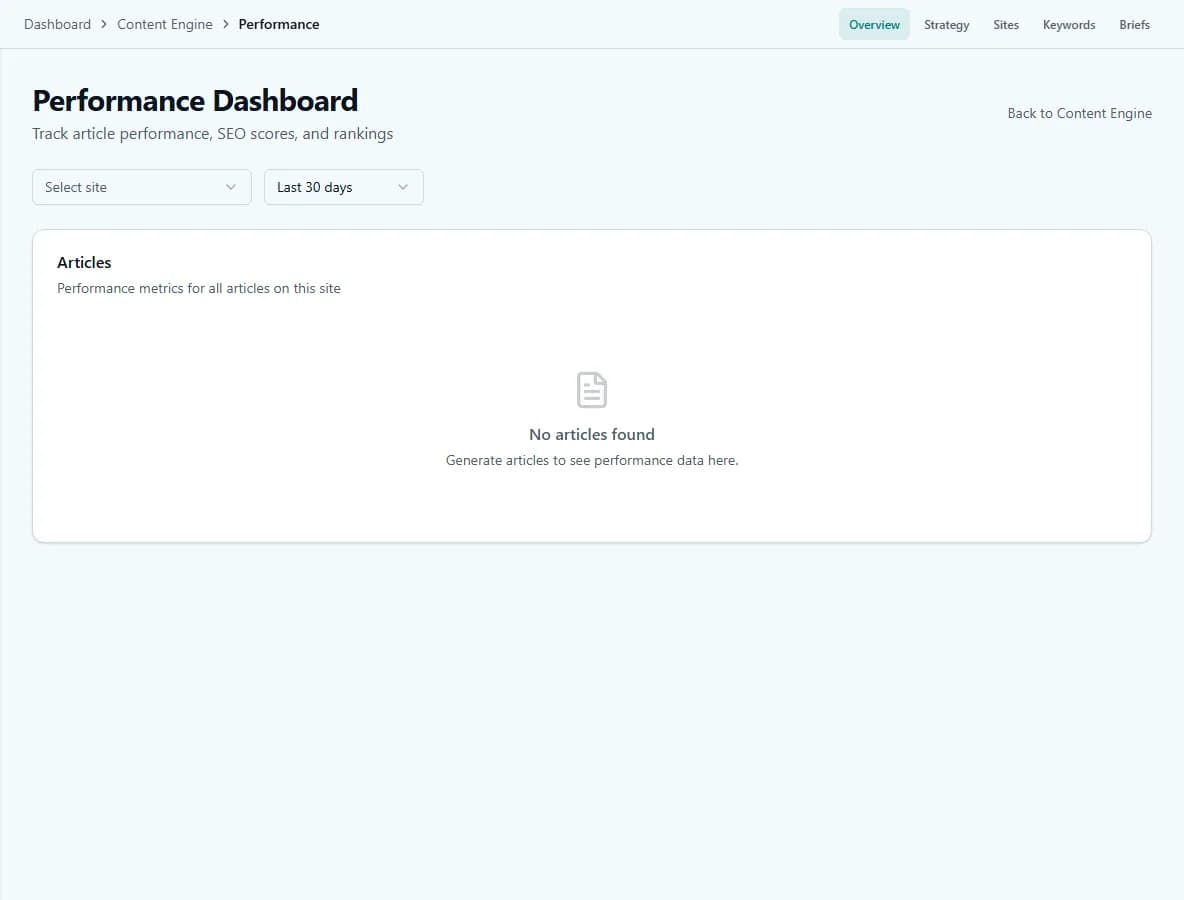
The Content Engine Performance Dashboard, tracking article performance and SEO scores by site and date range.
The Content Engine performance view is site-scoped and remains empty until articles and tracking data are available.
The Charigent Fleet workspace, showing conversation and token counts tracked per Agent and Character.
Fleet cards show configured entity types and recorded counters; values depend on actual Charigent activity.

Pricing

Basic analytics on all plans. Full dashboard on Pro ($89/mo).

See full pricing comparison

FAQ

Frequently asked questions

Which plan do I need for the full analytics dashboard?
Basic usage insights are available on every plan. The full dashboard, including the deeper spending and trend views, requires Pro ($89/mo).
What does the dashboard actually show?
Your recorded AI requests and actions, credit use by feature and task type, and daily, weekly and monthly trend charts. Unusual spending is highlighted.
Can I export the data?
Yes, as CSV, for accounting, audits, or feeding into your own BI tools.
Does it update in real time?
New information appears once the underlying activity has actually been recorded, so very recent activity may not show immediately.
Can it predict my future usage or prevent overages?
No. Historical trends are useful input for capacity planning, but they're not a guarantee of future usage and don't by themselves prevent overages.
How can Analytics Dashboard organize steps for a volunteer help-desk coordinator?
Map the desired outcome into clear steps, choose supported actions, and check what information each step needs before connecting them.
Which events can start a workflow?
A flow can start manually, on a schedule, through a webhook, or from a supported flow-level event. Per-integration event triggers are not available.
How can I tell whether an integration action will run?
Choose an action marked as supported and validate the flow. Unsupported integration trigger nodes are rejected when you save.
Can a person review work before an action runs?
Use an available approval or handoff step where the workflow supports it. Confirm the review point in the flow before enabling the process.
What should I check when a workflow step fails?
Review the step result and its required inputs, correct the issue, and run the affected path again with a safe example.
Can I update a workflow without rebuilding everything?
Keep connected accounts separate from the surrounding flow. Update the affected step, then validate the full path before relying on it.
How do I measure whether a workflow is useful?
Choose a clear outcome such as completed requests or response time, then compare the same measure over a consistent period.

Understand your recorded AI activity

Start your 7-day free trial. Card required to start; converts automatically to a paid plan when it ends, unless you cancel first.

Start free trial